
BoosterX: Windows background activity and FPS in CS2
On this page
Comparison of four stages on one PC. After BoosterX optimizations were applied sequentially, Windows background activity decreased, while average FPS in the selected CS2 benchmark increased by 2,23–2,96% relative to the prepared Clean system. Advanced Advanced produced the highest average FPS, while Expert Hardcore produced the highest P1 and the lowest activity during the recorded idle period.
Measurements were conducted by the BoosterX developer. The result applies to one test run on the specified system. All eight FPS runs and the full five-minute WPR windows are included in the calculations.
WPR results · CS2 results · Methodology · Download source data
What was tested
Section titled “ What was tested”Objective: to check how Windows background activity and performance in a fixed CS2 scenario change as the system moves sequentially through Clean → Safe Advanced → Advanced Advanced → Expert Hardcore.
WPR and CapFrameX answer different questions. WPR shows system activity after sign-in and during idle. CapFrameX measures intervals between frames under gaming load. A several-fold reduction in background CPU activity does not, by itself, mean a comparable FPS increase.
Test system and preparation
Section titled “ Test system and preparation”| Parameter | Test conditions |
|---|---|
| Measurement date | 24 October 2026 |
| CPU | AMD Ryzen 7 7800X3D, 8 cores / 16 threads |
| GPU | NVIDIA GeForce RTX 5070, driver 617.42 |
| RAM | 32 GB, 2 × 16 GB DDR5-6000 |
| Motherboard / BIOS | ASRock B850 Riptide WiFi / 4.20 |
| Windows | Windows 11 Pro 26H2, build 26300.9711 |
| BoosterX | 2.4.2.4, Debug build; hash of the binary used was not saved |
| CapFrameX | 1.8.6.2 |
| CS2 | CS2 FPS BENCHMARK DUST2, Workshop ID 3240880604 |
| Graphics | 1280×960, Low preset, FidelityFX disabled, Reflex enabled, fps_max 0 |
| Other settings | ReBAR, Game Mode, and HAGS enabled; CapFrameX identified the presentation mode as Fullscreen Optimized or Borderless |
| Power | Clean, Safe, and Advanced: “Balanced”; Expert Hardcore: PowerX v2.1 |
Preparation: clean Windows installation, all updates, Steam, Spotify, and AMD chipset drivers. CS2 files were transferred from another drive. The video driver was removed using DDU and reinstalled with the custom installation tool using a reduced set of NVIDIA components. The exact component selection and chipset driver version were not recorded separately. No other manual changes were made before the baseline measurement.
Thus, Clean here means the prepared system before applying BoosterX, already with applications and drivers installed. It is not Windows immediately after the first installation screen. The Clean ETL also contains activity from OneDrive and Edge components.
According to sensor data, the average CPU Max frequency during FPS runs was about 5035–5043 MHz, and the GPU frequency was about 2927–2930 MHz. Frequencies varied: the test was not run with fixed CPU/GPU clocks. CPU Max is not a measurement of the effective frequency of each core. PBO and Curve Optimizer settings were not recorded.
Methodology
Section titled “ Methodology”The four states were applied sequentially on one Windows installation. At each stage, the WPR cycle was run first, followed by the FPS test. The system was not restored to the Clean image between stages; changes accumulated. The package contains an incomplete WPR attempt for Expert Hardcore without an ETL. The next, completed recording is included in the summary. One Expert Hardcore FPS run was performed before this completed WPR recording, and the second after it.
WPR: five minutes after starting the recording at sign-in, five minutes of stabilization, then five minutes of idle. Lightweight profiles for CPU, disk, file, and network activity were recorded. Calculations were made directly from the ETL, between the start and end markers of each phase. The duration of each window differs from 300 seconds by less than 0,02 seconds. All eight ETL headers show zero lost events and buffers.
The first phase began approximately 15–23 seconds after Windows boot. OS boot time was not measured by this test. The final metrics were recalculated from the ETL.
CS2: two runs of approximately 105 seconds per stage. An automated map scenario was used. CapFrameX recording was started manually with a hotkey at approximately the same point in each run. The starts were not synchronized frame by frame. Two files with the incorrect process name infinst.exe also belong to the CS2 test. The archive preserves the original filenames and JSON contents.
The exact CS2 build, the map content version at the time of recording, the separate MSAA value, and the duration of the preliminary warm-up were not recorded. The current Workshop version of the map may differ from the one used. The comparison applies to this map, not to FPS in a competitive match: the map authors separately note the difference between local simulation and gameplay on a server.
WPR: Windows background activity
Section titled “ WPR: Windows background activity”| Metric | Clean | Safe Advanced | Advanced Advanced | Expert Hardcore |
|---|---|---|---|---|
| After sign-in: first 5 minutes of recording | ||||
| Average CPU usage, % | 1.488Baseline | 0.411Δ −1.077 pp−72.37% | 0.314Δ −1.174 pp−78.91% | 0.283Δ −1.205 pp−80.99% |
| CPU peak over a window of about 1 s, % | 30.60Baseline | 14.30Δ −16.30 pp−53.27% | 11.36Δ −19.24 pp−62.89% | 6.44Δ −24.16 pp−78.95% |
| Estimated CPU time, core·s | 71.42Baseline | 19.73Δ −51.68−72.37% | 15.06Δ −56.35−78.91% | 13.58Δ −57.84−80.98% |
| Context switches / s | 5,781.8Baseline | 1,330.6Δ −4,451.2−76.99% | 1,006.3Δ −4,775.4−82.59% | 763.3Δ −5,018.5−86.80% |
| Total context switches | 1,734,523Baseline | 399,198Δ −1,335,325−76.99% | 301,900Δ −1,432,623−82.59% | 229,000Δ −1,505,523−86.80% |
| Thread transitions to Ready / s | 3,692.2Baseline | 817.9Δ −2,874.2−77.85% | 614.7Δ −3,077.5−83.35% | 455.7Δ −3,236.5−87.66% |
| Processes at end of window | 148Baseline | 96Δ −52−35.14% | 92Δ −56−37.84% | 67Δ −81−54.73% |
| Process starts during window | 113Baseline | 27Δ −86−76.11% | 18Δ −95−84.07% | 16Δ −97−85.84% |
| Threads at end of window | 2,566Baseline | 1,718Δ −848−33.05% | 1,643Δ −923−35.97% | 1,349Δ −1,217−47.43% |
| Thread starts during window | 2,833Baseline | 1,030Δ −1,803−63.64% | 832Δ −2,001−70.63% | 683Δ −2,150−75.89% |
| Total process working sets¹, MiB | 5,054.5Baseline | 3,283.6Δ −1,770.9−35.04% | 2,954.5Δ −2,099.9−41.55% | 2,234.4Δ −2,820.0−55.79% |
| Total process commit¹, MiB | 2,589.9Baseline | 1,685.1Δ −904.8−34.93% | 1,586.2Δ −1,003.7−38.76% | 1,195.6Δ −1,394.3−53.84% |
| Process handles¹ | 66,187Baseline | 43,247Δ −22,940−34.66% | 40,520Δ −25,667−38.78% | 30,987Δ −35,200−53.18% |
| DPC / s | 981.7Baseline | 347.4Δ −634.3−64.61% | 306.4Δ −675.4−68.79% | 204.2Δ −777.5−79.20% |
| Hardware interrupts (ISR) / s | 420.1Baseline | 120.4Δ −299.7−71.34% | 102.7Δ −317.4−75.56% | 92.3Δ −327.8−78.03% |
| Hard faults during window² | 16,251Baseline | 9,661Δ −6,590−40.55% | 6,049Δ −10,202−62.78% | 5,271Δ −10,980−67.57% |
| Disk read, MiB | 920.36Baseline | 295.67Δ −624.69−67.87% | 237.00Δ −683.36−74.25% | 218.96Δ −701.40−76.21% |
| Disk write, MiB | 758.41Baseline | 123.43Δ −634.98−83.73% | 89.13Δ −669.28−88.25% | 66.27Δ −692.13−91.26% |
| Including WPR file writes³, MiB | 591.76Baseline | 85.00Δ −506.76−85.64% | 62.00Δ −529.76−89.52% | 42.00Δ −549.76−92.90% |
| Disk read operations | 29,124Baseline | 16,718Δ −12,406−42.60% | 13,234Δ −15,890−54.56% | 12,391Δ −16,733−57.45% |
| Disk write operations | 13,298Baseline | 3,118Δ −10,180−76.55% | 2,157Δ −11,141−83.78% | 1,588Δ −11,710−88.06% |
| Window duration, s | 300.000 | 300.018 | 300.003 | 300.015 |
| Idle: last 5 minutes of the cycle | ||||
| Average CPU usage, % | 1.238Baseline | 1.694Δ +0.456 pp+36.86% | 0.337Δ −0.901 pp−72.77% | 0.183Δ −1.055 pp−85.25% |
| CPU peak over a window of about 1 s, % | 12.17Baseline | 17.74Δ +5.57 pp+45.79% | 6.47Δ −5.70 pp−46.86% | 6.25Δ −5.92 pp−48.64% |
| Estimated CPU time, core·s | 59.41Baseline | 81.31Δ +21.90+36.86% | 16.18Δ −43.23−72.77% | 8.76Δ −50.64−85.25% |
| Context switches / s | 1,944.9Baseline | 2,061.6Δ +116.7+6.00% | 806.9Δ −1,138.0−58.51% | 336.5Δ −1,608.4−82.70% |
| Total context switches | 583,440Baseline | 618,477Δ +35,037+6.01% | 242,071Δ −341,369−58.51% | 100,967Δ −482,473−82.69% |
| Thread transitions to Ready / s | 1,208.0Baseline | 1,272.0Δ +64.0+5.30% | 522.9Δ −685.1−56.72% | 200.3Δ −1,007.7−83.42% |
| Processes at end of window | 153Baseline | 101Δ −52−33.99% | 90Δ −63−41.18% | 64Δ −89−58.17% |
| Process starts during window | 19Baseline | 168Δ +149+784.21% | 6Δ −13−68.42% | 5Δ −14−73.68% |
| Threads at end of window | 2,388Baseline | 1,678Δ −710−29.73% | 1,412Δ −976−40.87% | 1,189Δ −1,199−50.21% |
| Thread starts during window | 1,200Baseline | 2,321Δ +1,121+93.42% | 541Δ −659−54.92% | 333Δ −867−72.25% |
| Total process working sets¹, MiB | 5,150.6Baseline | 3,477.7Δ −1,672.9−32.48% | 2,890.6Δ −2,260.0−43.88% | 2,202.8Δ −2,947.8−57.23% |
| Total process commit¹, MiB | 2,847.4Baseline | 1,796.3Δ −1,051.1−36.91% | 1,587.9Δ −1,259.5−44.23% | 1,223.9Δ −1,623.5−57.02% |
| Process handles¹ | 68,628Baseline | 45,867Δ −22,761−33.17% | 39,888Δ −28,740−41.88% | 30,597Δ −38,031−55.42% |
| DPC / s | 1,210.5Baseline | 277.5Δ −933.0−77.08% | 216.7Δ −993.7−82.09% | 108.8Δ −1,101.7−91.01% |
| Hardware interrupts (ISR) / s | 922.1Baseline | 86.5Δ −835.6−90.62% | 64.3Δ −857.8−93.03% | 46.8Δ −875.3−94.93% |
| Hard faults during window² | 636Baseline | 5,258Δ +4,622+726.73% | 1,040Δ +404+63.52% | 1,203Δ +567+89.15% |
| Disk read, MiB | 12.90Baseline | 105.32Δ +92.42+716.28% | 81.50Δ +68.60+531.64% | 9.83Δ −3.07−23.78% |
| Disk write, MiB | 214.57Baseline | 317.84Δ +103.27+48.13% | 86.97Δ −127.60−59.47% | 31.03Δ −183.54−85.54% |
| Including WPR file writes³, MiB | 164.00Baseline | 172.00Δ +8.00+4.88% | 72.00Δ −92.00−56.10% | 15.00Δ −149.00−90.85% |
| Disk read operations | 634Baseline | 5,281Δ +4,647+732.97% | 4,241Δ +3,607+568.93% | 836Δ +202+31.86% |
| Disk write operations | 5,690Baseline | 2,410Δ −3,280−57.64% | 1,250Δ −4,440−78.03% | 1,783Δ −3,907−68.66% |
| Window duration, s | 299.986 | 299.999 | 300.006 | 300.016 |
Each value is followed by Δ relative to Clean in the same phase: the absolute difference in the units of the row and the relative change as a percentage. For CPU load, the absolute difference is given in percentage points (pp). A minus sign indicates a decrease in the metric, and a plus sign indicates an increase; the window duration is shown without a delta. Formulas: Δ = этап − Clean, Δ% = (этап / Clean − 1) × 100.
CPU is calculated from CPU Usage (Sampled) samples, weighted by interval duration and averaged across 16 logical processors. Estimated CPU time equals average load × window duration × 16 / 100. The peak is taken from intervals of about one second; edge intervals may be shorter. Events are counted within the full window; processes and threads are counted at its end, excluding Idle. Process starts include repeated creation of the same process.
¹ Memory and handles: process counter snapshot at ETL completion, 0,28–0,65 s after the end marker. The exact offset is saved in the JSON. The sum of working sets counts shared pages more than once and is not equal to physical RAM in use. Process commit shows allocated virtual memory that must be backed by RAM or the page file; it is not the amount actually written to the page file. These sums do not describe all kernel and driver memory or the file cache.
² Hard faults mean loading a page that is not in RAM from disk, including file pages. They are not hardware memory errors. DPC and ISR show event frequency, not input latency or processing duration.
³ WPR writes are identified by logger filenames. They are already included in total disk writes. Disk metrics include the measurement tool’s activity and are not a clean estimate of application load.
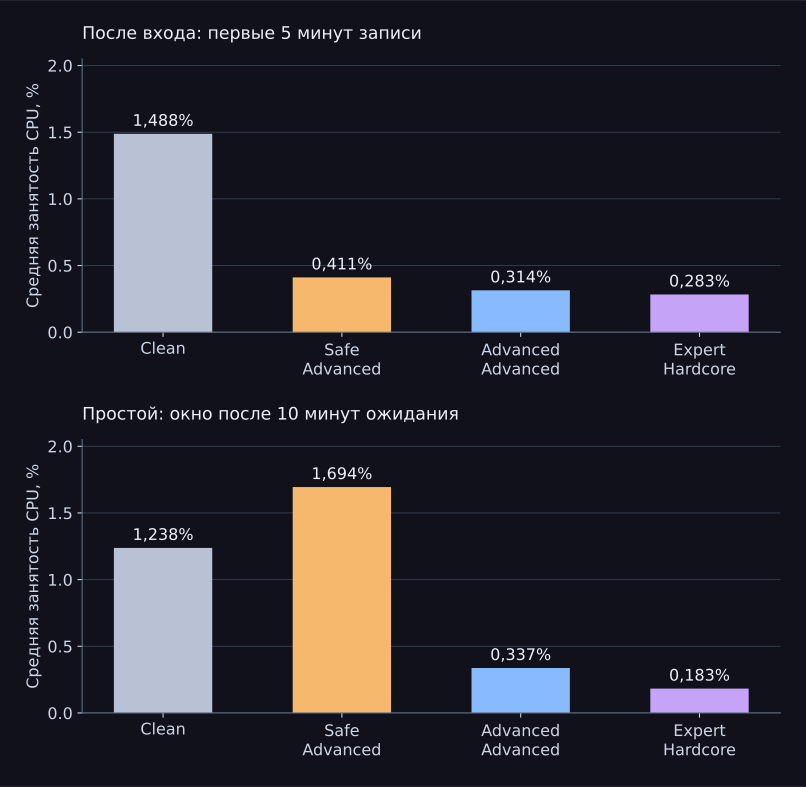
In the Clean versus Expert Hardcore comparison, sampled CPU utilization after sign-in decreased by about 5,3 times, and during idle by 6,8 times. Context switches during idle decreased by about 5,8 times; the number of processes at the end of the window: 153 → 64. These are ratios for specific measured metrics, not a single “Windows speedup” factor.
Why Safe was busier during idle
Section titled “ Why Safe was busier during idle”During the last minute of Safe idle, mscorsvw.exe and ngen.exe were running. mscorsvw.exe accounted for about 56,4 CPU seconds. Average CPU by minute: 0,40 → 0,20 → 0,19 → 0,19 → 7,49%. As a result, the full window was busier than Clean, even though the first four minutes were quieter.
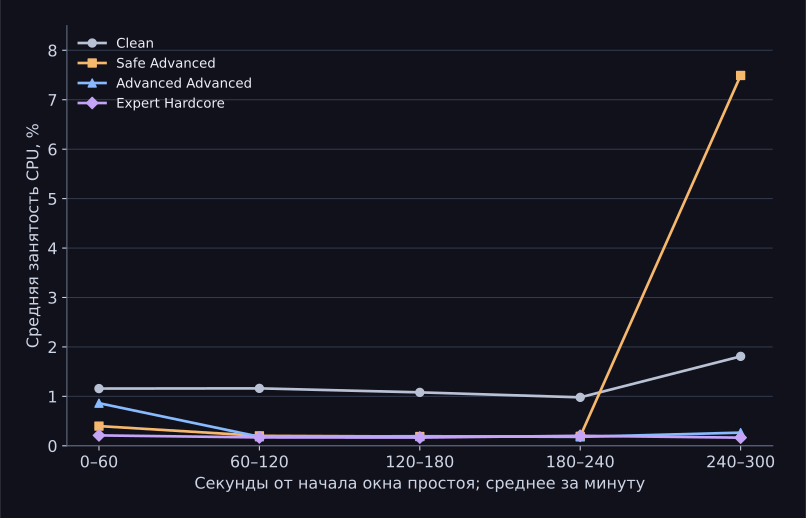
This spike is retained in the main table. A single sequential test run cannot separate the sustained effect of the mode from one-off background tasks and changes in Windows state over time.
How to read the memory and disk metrics
Section titled “ How to read the memory and disk metrics”Total disk writes include writes made by WPR itself. For example, in Clean idle, of 214,57 MiB written, 164 MiB went directly to WPR logger files. This portion is shown as a separate row in the table. The test folder was in OneDrive; the effect of synchronization was not isolated separately. Network speed and power consumption are not compared in this publication.
CS2: FPS and frame time
Section titled “ CS2: FPS and frame time”| Metric | Clean | Safe Advanced | Advanced Advanced | Expert Hardcore |
|---|---|---|---|---|
| Average FPS | 888.29Baseline | 911.19Δ +22.91+2.58% | 914.56Δ +26.28+2.96% | 908.08Δ +19.79+2.23% |
| P1 FPS | 296.73Baseline | 304.42Δ +7.69+2.59% | 308.55Δ +11.82+3.98% | 312.15Δ +15.42+5.20% |
| P0,1 FPS | 259.15Baseline | 265.90Δ +6.76+2.61% | 260.28Δ +1.13+0.44% | 264.29Δ +5.14+1.98% |
| 1% low: average of slow frames, FPS | 275.50Baseline | 283.63Δ +8.14+2.95% | 283.41Δ +7.91+2.87% | 288.21Δ +12.71+4.61% |
| Average frame time, ms | 1.126Baseline | 1.097Δ −0.028−2.51% | 1.093Δ −0.032−2.87% | 1.101Δ −0.025−2.18% |
| P99 frame time, ms | 3.370Baseline | 3.285Δ −0.085−2.53% | 3.241Δ −0.129−3.84% | 3.204Δ −0.167−4.95% |
| Average difference between adjacent frames, ms | 0.351Baseline | 0.338Δ −0.013−3.64% | 0.335Δ −0.016−4.53% | 0.329Δ −0.022−6.30% |
| Average FPS: range across two runs | 884.85 – 891.72 | 908.79 – 913.59 | 914.55 – 914.57 | 907.57 – 908.59 |
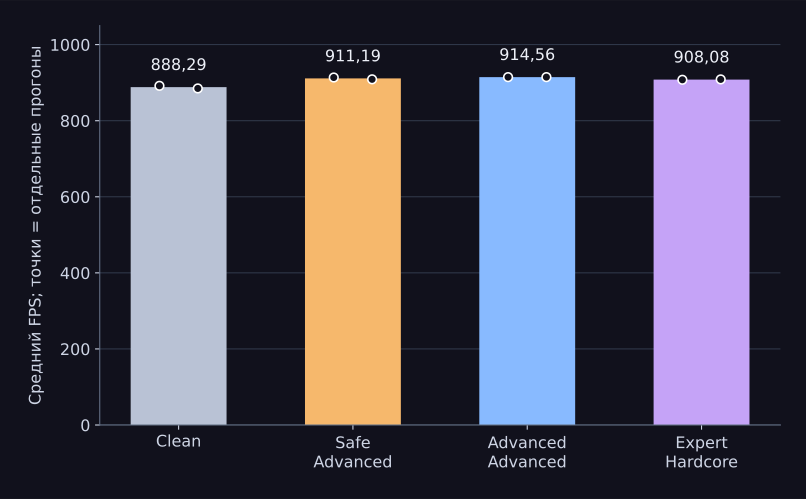
Advanced Advanced produced the highest average FPS: 914,56 versus 888,29 for Clean, +2,96%. Expert Hardcore was slightly behind it in average FPS, but had the highest P1: 312,15 versus 296,73, +5,20%. The most aggressive stage was not the best across all metrics.
The average FPS for each run is 1000 / среднее время кадра в мс. P1 is 1000 / P99 времени кадра; P99 is calculated by linear interpolation over sorted frames. Stage results are the averages of two runs. Absolute and relative deltas versus Clean are shown below the values. For FPS, higher is faster; for frame time, lower is faster. The 1% low row is calculated separately as 1000 / среднее время самых медленных 1% кадров and does not match P1.
All eight runs and long frames
| Stage / run | Frames | Average FPS | P1 FPS | P99, ms | Longest frame, ms |
|---|---|---|---|---|---|
| Clean / 1 | 93,631 | 891.72 | 299.70 | 3.337 | 11.956 |
| Clean / 2 | 92,911 | 884.85 | 293.75 | 3.404 | 12.453 |
| Safe Advanced / 1 | 95,928 | 913.59 | 306.00 | 3.268 | 10.488 |
| Safe Advanced / 2 | 95,424 | 908.79 | 302.84 | 3.302 | 7.385 |
| Advanced Advanced / 1 | 96,030 | 914.55 | 307.77 | 3.249 | 11.177 |
| Advanced Advanced / 2 | 96,031 | 914.57 | 309.32 | 3.233 | 8.448 |
| Expert Hardcore / 1 | 95,295 | 907.57 | 310.07 | 3.225 | 9.144 |
| Expert Hardcore / 2 | 95,403 | 908.59 | 314.23 | 3.182 | 8.894 |
All frame intervals are positive, and the time sequence is monotonic. Long frames are retained. Frames are not independent experimental repetitions: there are only two FPS runs per stage. The range in the table shows the spread of these two runs, not a confidence interval.
Average GPU load was about 74–76%, with peaks up to 95–96%. These data do not support declaring every part of the scenario exclusively CPU-limited. The PcLatency field from CapFrameX is not used as a physical “mouse movement → screen light” latency.
Frametime Variance: frame consistency
Section titled “ Frametime Variance: frame consistency”The principle used is the one in the CapFrameX Variances tab: the absolute difference between the frame times of two adjacent frames |tᵢ − tᵢ₋₁|, in milliseconds. Pairs are distributed across five intervals: <2, 2–<4, 4–<8, 8–<12, and ≥12 мс. This metric measures adjacent-frame changes; statistical variance in ms² is not calculated here. The interval boundaries were checked against the CapFrameX v1.8.6 source code.
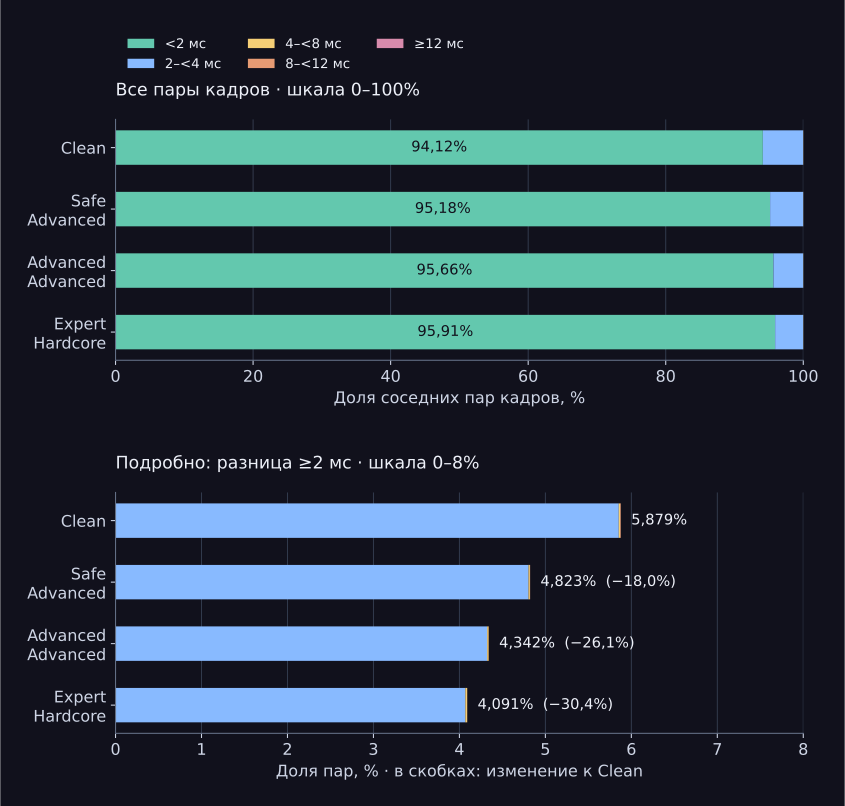
For Expert Hardcore, the share of pairs with a difference of 2 ms or more is 4,091% versus 5,879% for Clean. This is −1,787 pp, or −30,4% relative to Clean. The reduction for Safe Advanced is 18,0%, and for Advanced Advanced it is 26,1%. These percentages refer to the share of adjacent-frame changes of 2 ms or more, not to an FPS increase or aiming accuracy.
| Difference between adjacent frames | Clean | Safe Advanced | Advanced Advanced | Expert Hardcore |
|---|---|---|---|---|
| <2 ms | 94.1214% | 95.1774%Δ +1.0561 pp | 95.6581%Δ +1.5367 pp | 95.9087%Δ +1.7873 pp |
| 2–<4 ms | 5.8540% | 4.8038%Δ −1.0502 pp | 4.3226%Δ −1.5313 pp | 4.0693%Δ −1.7847 pp |
| 4–<8 ms | 0.0166% | 0.0162%Δ −0.0004 pp | 0.0172%Δ +0.0006 pp | 0.0210%Δ +0.0044 pp |
| 8–<12 ms | 0.0075% | 0.0026%Δ −0.0049 pp | 0.0021%Δ −0.0054 pp | 0.0010%Δ −0.0065 pp |
| ≥12 ms | 0.0005% | 0.0000%Δ −0.0005 pp | 0.0000%Δ −0.0005 pp | 0.0000%Δ −0.0005 pp |
For each stage, pair counts from the two runs are combined, without joining the last frame of one run to the first frame of the other. The denominator is the sum of N − 1 across the two runs. Therefore, the shares are weighted by the number of pairs, unlike the average of two FPS values. Exact counts are saved in the JSON and CSV; the table rounds shares to four decimal places. CapFrameX rounds them earlier, so the last displayed digits may differ.
The main reduction is in the 2–<4 ms interval. The share of 4–<8 ms changes for Expert Hardcore is slightly higher than for Clean: 0,0210% versus 0,0166%. All intervals are retained, including rare changes. Reproducibility of this change cannot be established from two runs.
What this means for aiming: in this benchmark, frame intervals became more consistent at the 2 ms threshold. Any potential benefit to the visual smoothness of crosshair movement remains a hypothesis: recording frame intervals does not measure aiming accuracy, mouse movement, or the delay before an image appears. This test run does not support promising “much better aiming.”
Conclusion and limitations
Section titled “ Conclusion and limitations”This sequential test run recorded a decrease in background activity after sign-in. In the selected CS2 scenario, all three subsequent stages produced higher average FPS than the prepared Clean system. Practical result on this test system: about 2–3% average FPS, with Advanced and Expert Hardcore having different strengths.
The study does not establish the contribution of any individual setting, a universal increase, Windows startup time, or physical input latency. Expert Hardcore includes a power plan change, so the entire stage is compared as a whole. A reduction in the number of processes is not, by itself, a measure of gaming performance.
Limitations: one PC, fixed stage order, one completed WPR capture per stage, two FPS runs, manual capture start, Debug build without a saved binary hash. Order effects, cache warm-up, and background maintenance were not separated from the optimization. Clean idle also included a brief launch of Task Manager; the full window is retained without trimming. This test run has no independent reproduction or control restoration to Clean.
Antivirus and FPS
Section titled “ Antivirus and FPS”Disabling antivirus for FPS is not recommended. This test run compares sets of changes as a whole; it does not include a separate test with the single variable “protection on / off.” Therefore, it does not prove that antivirus has zero effect on FPS, nor does it separately measure memory savings from disabling it.
Microsoft recommends keeping real-time protection enabled. If there is a noticeable load, Microsoft Defender performance analysis can help identify the specific cause.
Restoring the system state
Section titled “ Restoring the system state”Restoring the original state after Expert Hardcore was not tested as part of these measurements. For a repeat test with independent states, restore a prepared Clean image and document the restoration. General rollback limitations are described in BoosterX recovery limitations.
Source data and recalculation
Section titled “ Source data and recalculation”8 ETL · 8 CapFrameX JSON · tables, charts, and recalculation scripts. To view the results, open README.html inside the archive. Original recordings are preserved unedited. The two files named infinst.exe are also part of the CS2 test.
Archive SHA-2567f20104f7eb46428e5e4f383515653b1320827be39fc171d1b5590210d0fbcdd
WPR, CSV · All FPS runs, CSV · Frametime Variance, CSV · Calculations, JSON · Recalculation script
The archive contains the source folders for the four completed WPR stages, the incomplete Expert Hardcore attempt, eight original CapFrameX JSON files, the recording scripts used, the methodology, tables, charts, and the recalculation source code. Older smoke tests and service archives that duplicate them are not included. The presence of an old verification status in the source folders does not change the calculations from the ETL presented here.
Windows Performance Toolkit is required for independent ETL analysis; CapFrameX can be used for the original game recordings. The analysis/analyze.py script uses Python 3 and WPT 10+; it does not start a recording or modify the system. Instructions are in README.html. Checksums can be used to verify that files have not changed; they do not prove the conditions under which the experiment was conducted.
System traces are preserved in their original form: they contain technical information about the test installation, including processes, local paths, and system identifiers. The archive is not claimed to be anonymized. BoosterX application source code and third-party executable files are not included.
Sources and history
Section titled “ Sources and history”- The source recordings from this test run and the recalculation script are available above.
- CS2 FPS BENCHMARK DUST2: map description and limitations.
- Microsoft: CPU Analysis, CPU samples, and context switches.
- Microsoft: xperf cswitch and time boundaries.
- Microsoft: recommendations for continuous Defender protection.
- Microsoft: process memory counters.
- CapFrameX: Variances tab and distribution comparison.
- CapFrameX v1.8.6: Frametime Variance calculation source.
- General Wiki research methodology.
Last checked: 2026-10-25. First edition dated 24 October: four stages on one physical PC, with open source measurements and recalculation. On 25 October, deltas versus Clean, an expanded FPS table, and Frametime Variance were added. The study was prepared by the BoosterX developer. Source recordings, test conditions, and the recalculation script are published for independent verification.